You want to build a website. A few pages about your work, perhaps a blog, some images and a way for people to contact you. You already have a fairly clear idea of what you want to say. Then comes the technical question: which system should hold it all together?
WordPress is an obvious option. But you may also have come across Automad: a website without a database, with an interface for editing your content. That sounds pleasantly straightforward.
I wanted to find out what working with it actually feels like. So I set up a local Automad installation at scinet, prepared sample pages and followed a text change from draft to publication. Here, I share my experience with the editor and explain how to install Automad on your web hosting account.
My hands-on test took place on 28 October 2026 with Automad 2.0.0-beta.68 and the Standard Lite 0.2.8 theme. I tested Automad first with PHP 8.3.24 and then with PHP 8.3.36 and PHP 8.5.12. I successfully repeated the login, block editing, draft saving and publication checks with both newer versions. PHP 8.3.36 was the current PHP 8.3 release on the test date. The comparison concerns self-hosted WordPress, the software available from WordPress.org. I tested Automad directly; the WordPress side draws on its official documentation. PHP 8.3.36 release announcement
What Automad does
Automad is a content management system, or CMS. It lets you manage pages and content without opening a PHP file every time you want to change a sentence.
Its distinctive feature is how it stores content: in files. You do not need a separate MySQL or MariaDB database. It still provides a dashboard, a block editor and themes. The project also lists search, tags and caching among its features. A cache keeps previously generated results available so that each request does not have to repeat the same work. Automad overview
A website without a database might make you think of a collection of finished HTML pages. Automad works differently: PHP runs on the server and combines content with templates. Your hosting therefore needs PHP support, but you do not need to create a separate database for Automad.
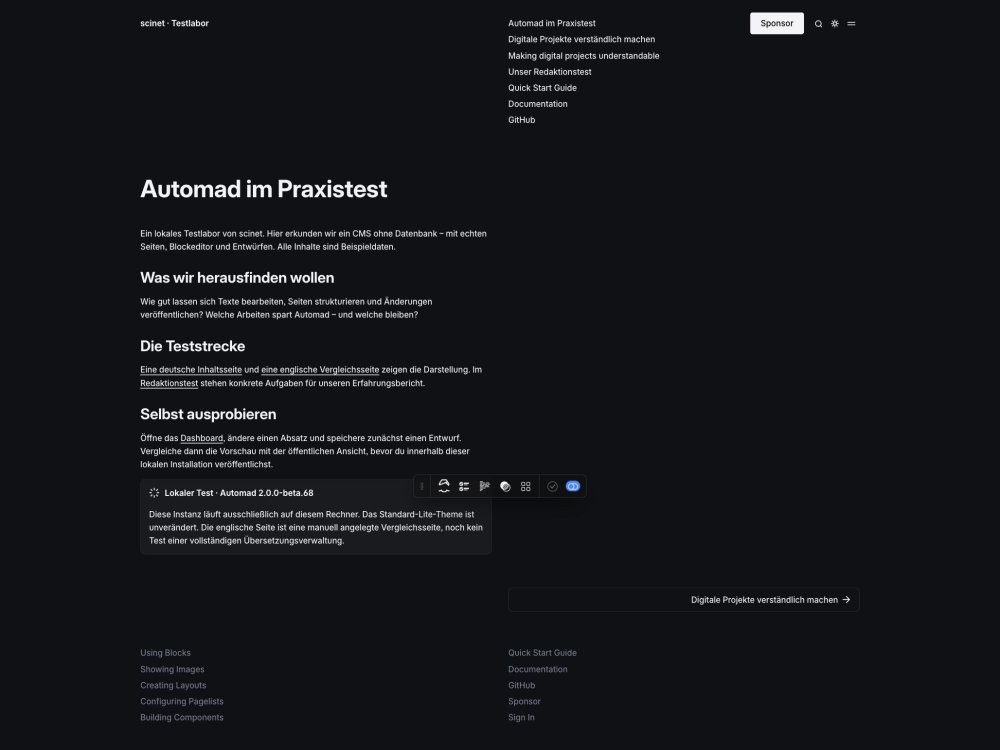
My own homepage using the included Standard Lite theme. The editing toolbar is visible because this screenshot was taken while signed in.
What editing feels like
The dashboard has a page tree on the left. Select a page to access its settings, content, customisations and files. In the theme I used, content areas were divided into “Hero”, “Main” and “Footer”. My sample text was in “Main”.
The basic workflow feels familiar: a paragraph, a heading, another paragraph. You click into the text and edit it where you see it. Changing my heading did not require touching the application code.
I had prepared the four test pages as files beforehand. I then carried out the actual editorial change in the browser. That distinction matters: this test shows how text editing works. It does not establish how comfortable it is to build an entire new site exclusively through the dashboard.

The prepared content blocks can be edited directly in the “Main” area.
Try an idea before publishing it
You probably know the moment: you want to improve a sentence but have not quite settled on the wording. It helps if visitors do not see every intermediate version.
That is exactly what I checked. I changed the German heading “Von der Idee zur klaren Website” to “Von der Idee zum lokalen Praxistest”. After editing and leaving the field, Automad automatically saved the change as a draft. The new heading appeared under draft in the content file, while published still contained the previous version.
I then requested the page without signing in. It still showed the old heading. Only after clicking “Publish” did the new wording appear for that visitor request too. The draft area was empty afterwards.
For me, this was the most useful part of the test. I could follow what happened while editing and see exactly when a change became visible.

The new heading initially exists as a draft. I checked the visitor version separately without signing in.
How did the PHP 8.5.12 test go?
I also wanted to see whether the same editing workflow would work with PHP 8.5.12. I repeated it in a separate test installation using the same Automad version and theme. Login, the dashboard and the block editor opened successfully. I then changed a heading, saved the draft and published the change.
The result: with PHP 8.5.12, the draft initially remained visible only in the editor. A page request without a signed-in session still showed the old heading. The new text appeared there only after publication. This workflow therefore worked in my tests with PHP 8.3.24, PHP 8.3.36 and PHP 8.5.12.
That is encouraging for everyday text editing. It is not a complete compatibility check of every Automad feature. I did not test extensions, email delivery or other themes in this run, and it does not establish a performance advantage. Before changing PHP versions on an existing website, test the functions you actually use. Official PHP 8.5.12 release announcement
Installing Automad on your web hosting account
For your own website, you will want Automad to run under your domain. The usual route is a hosting package with PHP. The following steps describe manual installation based on the official instructions. My hands-on test was local; I did not test deployment with a particular hosting provider.
1 Prepare suitable hosting
Automad 2 requires PHP 8.2 or later with GD, cURL and ZIP. Apache also needs mod_rewrite enabled. Ask your hosting provider whether your package meets these requirements. Automad does not require a database. Always use the current security release within your chosen PHP branch; for PHP 8.3, that is version 8.3.36 as of 28 October 2026.
For an initial trial, I would use a subdomain with its own empty website directory. This leaves your existing site undisturbed. Enable HTTPS in your hosting control panel.
Important for your hosting: PHP 8.3.24 is documented here only as the original test version. Because of the vulnerabilities known as PHP2Shell, have your PHP 8.3 installation updated to 8.3.36 or a newer security release. In the PHP 8.5 branch, PHP 8.5.12 includes the fixes. An explicitly confirmed provider backport can also contain the fixes. Updating your CMS alone does not replace updating PHP. My article PHP2Shell: is my website affected, and what should I do? (in German) explains how to check your site and clarify the status with your host.
2 Download and upload Automad
Download the distribution bundle through the official installation page and extract it. Use a file transfer application to upload its contents to your domain’s website directory. Make sure hidden files such as .htaccess are included.
3 Check permissions and server settings
PHP needs write access to the installation directory and its subdirectories so Automad can save content and settings. Ask your host to configure suitable permissions if necessary. Nginx requires an appropriate server configuration; Automad links to examples in its documentation.
4 Set up your account
Open your domain followed by /dashboard and follow the instructions to create the first account. The setup wizard then guides you through configuration, including email and AI integration. These steps follow the official Automad installation guide.
Use a working email address and a strong password. Check email delivery before relying on it. In my test, I inspected the email and AI settings, but I did not send a test email or try the AI features.
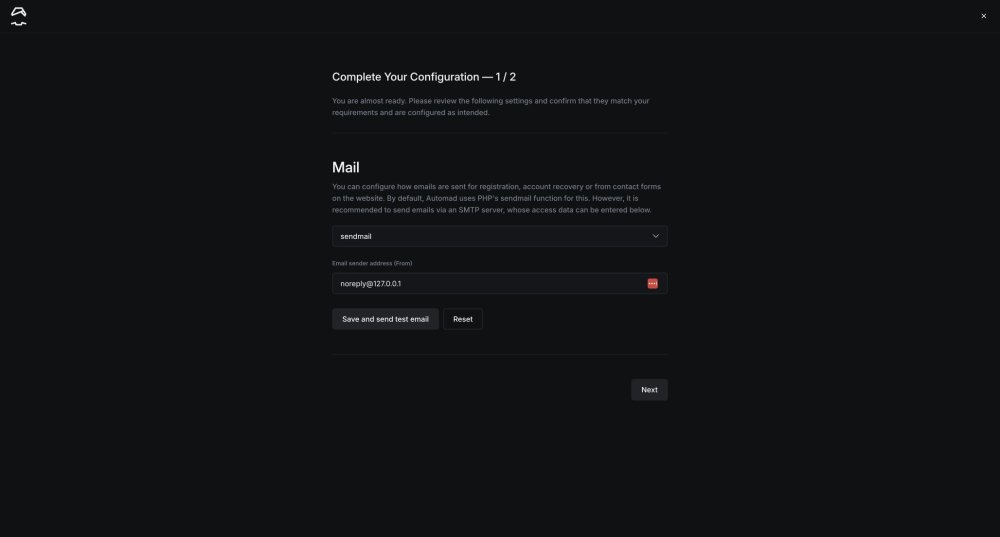
The email configuration screen, captured in my test installation.
5 Edit your first page
Now you can focus on your content. Open a sample page, switch to “Content” and change a heading. Wait for the draft to save, then check the visitor view in a private browser window. This avoids accidentally sharing the editor’s signed-in session.
Click “Publish” and check again. This is the workflow I followed in the hands-on test. If it feels comfortable, you can start building your own pages step by step.
Automad compared with WordPress
Both systems let you maintain website content. Their differences become clearer when you ask what you want to edit, which features you need and who will maintain the site.
| Area | Automad | Self-hosted WordPress |
|---|---|---|
| Storage | Content in files; no separate CMS database | Normally MySQL or MariaDB in addition to files |
| Editing | Block editor; separate draft and published versions in my test | Block editor for pages and posts |
| Design | Themes, custom templates and PHP extensions | Themes; block themes also support the Site Editor |
| Extensions | Automad-specific packages or custom development | Extensive plugin directory for many different tasks |
| Backups | Back up related content, media, configuration and application files together | A complete backup includes both files and database |
| Multiple languages | My test used two manually linked language pages | Available through extensions such as Polylang |
| Maintenance | Maintain PHP, the application and installed packages | Maintain PHP, WordPress, themes and plugins |
The WordPress information comes from its official documentation on requirements, the block editor, the Site Editor, plugins and backups. For Automad’s extension options, see its developer guide.
A block editor is not unique to Automad
If you still picture WordPress as one large text field, it is worth taking another look. WordPress uses blocks for paragraphs, headings, images and other content. With a suitable block theme, its Site Editor also lets you edit areas such as headers and footers. WordPress block editor, Site Editor
Automad’s editor worked in my limited text-editing test. That does not mean everyone will find it easier. If you already know WordPress well, that familiarity may matter more than a new interface that looks tidy at first glance.
Look closely at additional features
A website changes over time. Today, you may need five content pages. Later, you might want bookings, a members’ area or a shop.
WordPress provides an extensive starting point in its plugin directory. Automad can also be extended, including through custom PHP extensions. However, a suitable solution must either exist for Automad or be developed for it. WordPress plugins cannot simply be reused there. Automad developer guide
My recommendation is to write down your actual requirements and assess each system against those tasks. The length of a feature list tells you little about how well your day-to-day workflow will function.
Two languages need more than two pages
I had one German sample page and one English comparison page. Both were accessible and linked to each other. This did not test a translation management workflow.
A multilingual site raises further questions: how are translations associated, how do visitors switch languages, and which URLs and search engine signals are produced? Polylang is one WordPress extension for this purpose. For Automad, I would test the complete workflow separately before recommending it for a multilingual project.
If you are looking for a multilingual plugin for your WordPress website, take a look at scinet Multilingual. I developed it myself and make it available for you to use free of charge.
No database does not mean no maintenance
Automad removes the need for a separate database backup. That makes its file-based structure easy to follow. Content, images, configuration and the necessary application files still need to be backed up together. You also need to be able to restore that backup.
For WordPress, a complete backup normally includes both files and database. This can be automated, so the extra component does not necessarily create extra manual work. WordPress backup guide
I would also look carefully at updates. PHP and the installed software remain relevant to both systems. WordPress documents its process for security fixes, and Automad also releases updates. Storing content in files does not make a system maintenance-free or automatically more secure. WordPress security process, Automad releases
Costs depend on the whole project
I paid no licence fee for the download or my local Automad test. The core package I inspected contains an “O’Saasy License Agreement”, while the Standard Lite theme has a separate MIT licence. The terms for each component should therefore be considered separately. WordPress is distributed under GPLv2 or later. Automad distribution package, WordPress licence
When choosing a system, I would also budget for hosting, design, extensions and ongoing support. A free download says little about the total effort involved in running your finished website.
What I take away from the test
I see Automad as an interesting candidate for a site focused on editorial content: a small company website, a portfolio or a manageable topic-based site. If working with files is a deliberate preference, it is worth trying it with a representative page from your own project.
My test showed that a browser-based text change could be saved as a draft and then deliberately published. The German sample page remained readable at a width of 390 pixels without horizontal overflow. The default layout left a lot of space above the main heading. Whether you like that is a design decision best judged with your own content.
WordPress makes particular sense to me when you already have suitable extensions and workflows, or expect to add further features. It can work well for a small site too. A switch needs a concrete benefit that justifies the migration.
I did not benchmark loading times, restore a backup or test complex forms, shops or multilingual workflows. My Automad version was a beta. This trial provides a basis for the next decision, rather than a blanket recommendation for every project.
Perhaps that is enough for your first step: create a page with your own content, change something and see whether you enjoy working with it. That will tell you more about the right system for you than another abstract debate over which CMS is best.